


Let's get personal. Not too personal, but personal in your digital workspace.
You go to work in your digital workspace day after day, so it's important to have one that reflects who you are and your brand. Today, we're going to look at a few ways to personalize your Google Workspace, your Microsoft 365, and your Notion.
From personal experience, making my digital workspace reflect me and my brand in colors, fonts, and images has made it more inviting and exciting to use each day. And if you enjoy using your digital systems, you'll use them.
Before you start, gather four things:
Your brand colors as hex codes. These are the six-character codes for each color, and you'll find them in your brand guide or your Canva brand kit.
Your font names and files. Most platforms won't let you upload your own fonts, so also pick a free Google Font that looks close to each one.
Your logo(s) as a PNG file.
The images you want to use, saved in one folder so they're ready to upload to your space.
Tip: Keep your hex codes and font names in OneNote, Notion page, or saved as a document, so you can copy and paste them anywhere when you need them.
Google Workspace
I moved my own business to Google Workspace this year, so this is the setup I use every day.
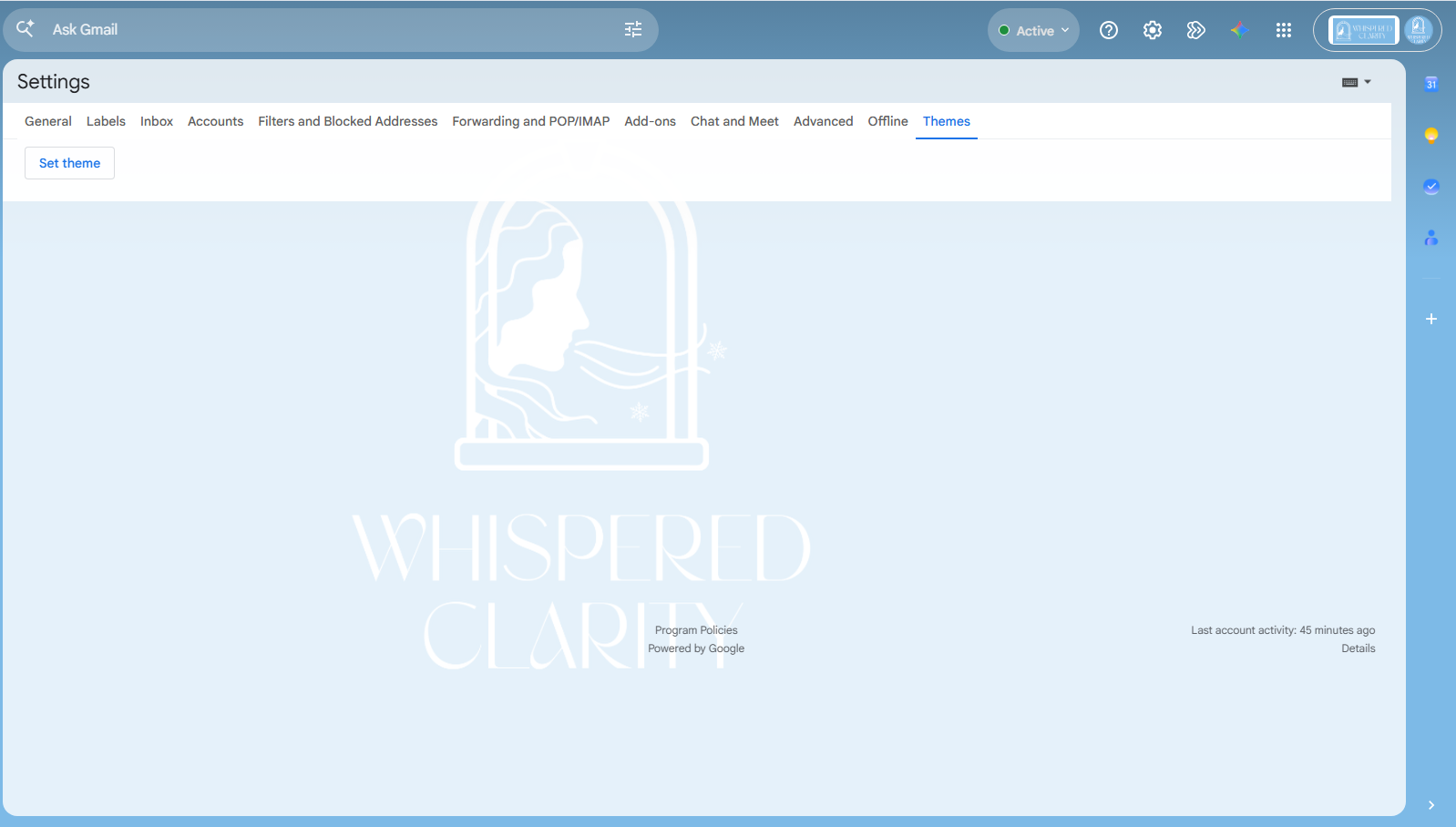
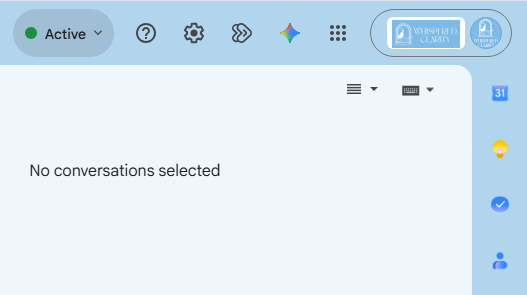
Your logo. If you're the account admin, upload your logo in the Google Admin console under Account settings, then Personalization. It shows at the top of Gmail, Calendar, and Drive for everyone in your organization on a computer. It can take up to four days to appear.
Gmail. Gmail doesn't take hex codes, but it does take images. Open Settings, choose Themes, and upload a soft branded background as your own theme. The Gmail phone app stays light or dark.
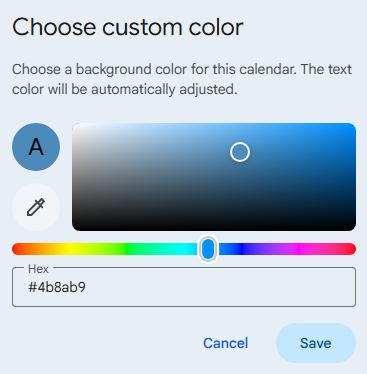
Calendar. This one is my favorite. Click the three dots next to a calendar, choose the plus sign under the colors, and enter your hex code. Color-code by client or type of work so your week reads at a glance. Set your colors on your computer, and they carry over to your phone.
Docs. Add your brand colors as custom colors in any color menu, set your heading and body fonts as your styles, and save it all as a template. Every new document starts on brand.
Sheets. Go to Format, then Theme, and build a custom theme with your colors and fonts. Your accent colors become your chart colors automatically.
Slides. Set your theme colors and fonts once, and every new slide follows them. Admins can also set a branded default template for the whole team.
Forms. Customize the theme with a header image, your theme color, and a font style. There are only a few font styles to choose from, so let your header image do the heavy lifting. Admins can set a branded default theme for every new form.
Sites. Google Sites has the most complete custom themes, covering fonts, colors, images, buttons, and navigation.
A note on fonts. Google Workspace doesn't let you upload your own fonts, so you can only use Google Fonts. My brand fonts are Ginger and Brandon Grotesque, so in Google I use Cormorant Garamond and Jost, two free Google Fonts that look close. Find yours in the font menu under More fonts.
Microsoft 365
Microsoft offers plenty of branding power, but much of it depends on your plan. Here's what most small businesses can do on a Business plan.
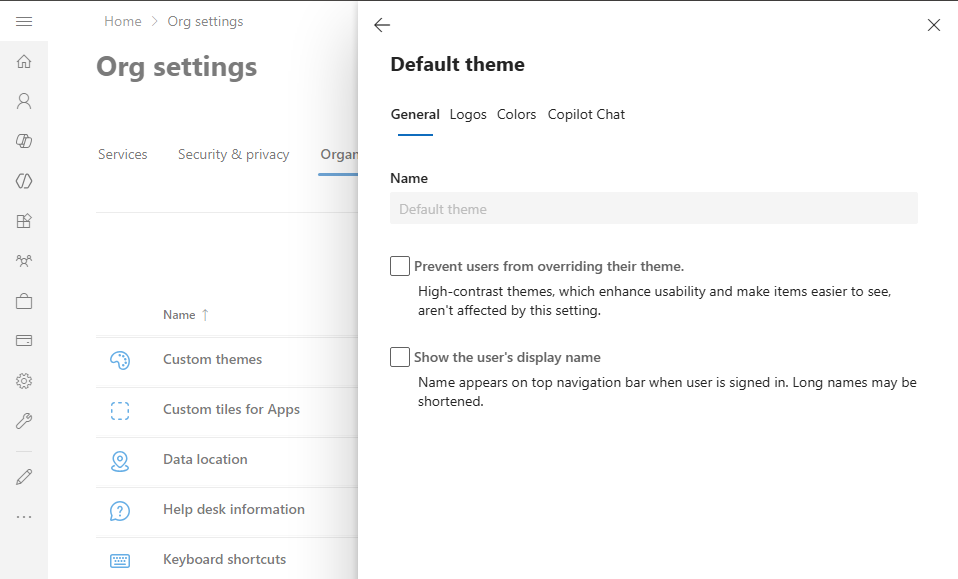
Your logo and colors in the top bar. In the Microsoft 365 admin center, go to Settings, then Org settings, then Organization profile, and choose Custom themes. Add your logo and a second version for dark mode, then pick your navigation bar, text, and accent colors. Microsoft even tells you when two colors are hard to read together.
Word, PowerPoint, and Excel. In the desktop apps, create a custom theme with your hex colors and fonts. One catch: your brand fonts need to be installed on every computer that opens the file, or it will look different on theirs.
Forms. Upload your own background image and enter your theme color by hex code. Insider tip: for a clean, solid background, upload a plain image in your brand color.
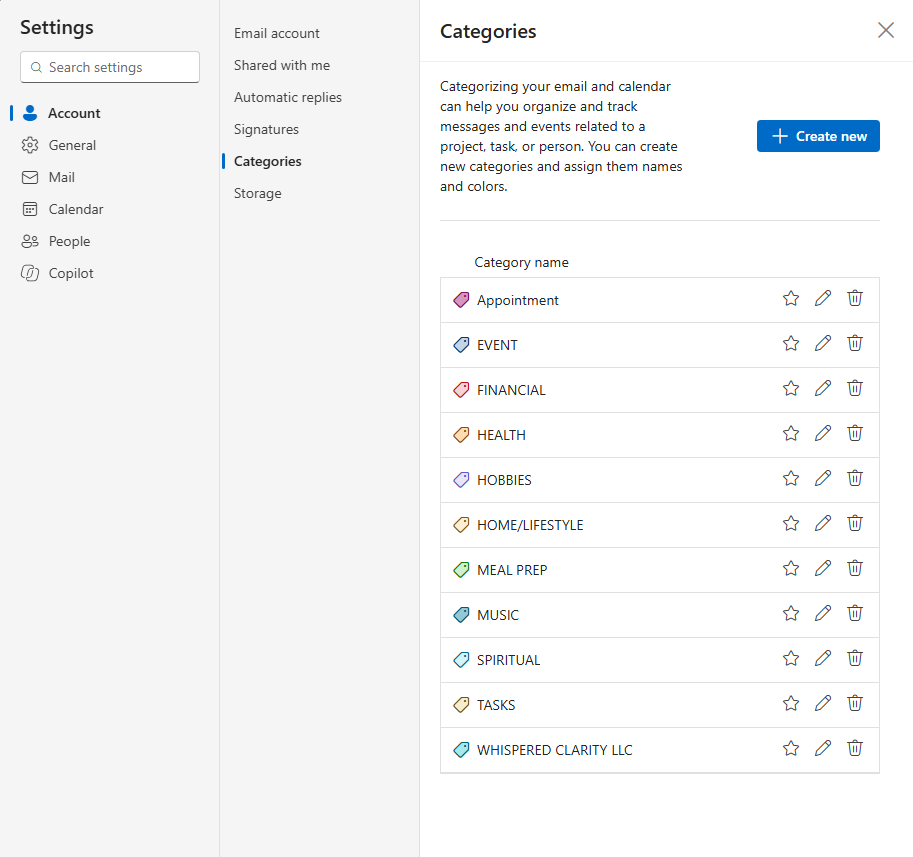
Outlook. Rename and recolor your categories so client emails and meetings are easy to spot. Choose the closest match from Outlook's color options.
Bigger plans, bigger branding. Some features need more than a Business plan:
Brand fonts in Word and PowerPoint for everyone: E3 or E5 licenses, plus admin setup.
Branded Teams meetings with your colors and logo: Teams Premium.
A Copilot Brand Kit with your logos, colors, fonts, and brand voice: Copilot Premium.
Coming in March: SharePoint Brand Center. If your team uses SharePoint, Brand Center puts your brand fonts and colors in one place and builds branded site themes from them. It's big enough to get its own post, so watch for my Brand Center guide in March.
Notion
Notion keeps its look simple on purpose. There are no hex codes and no custom fonts: you get 10 text and background colors and three font styles, Default, Serif, and Mono. So in Notion, your brand shows up through images and consistency. [Screenshot: a Notion page with your cover image and icon]
Branded cover images. Design a set of wide cover images in your brand colors and fonts in Canva, and use them on every page. This does more for your brand than any setting.
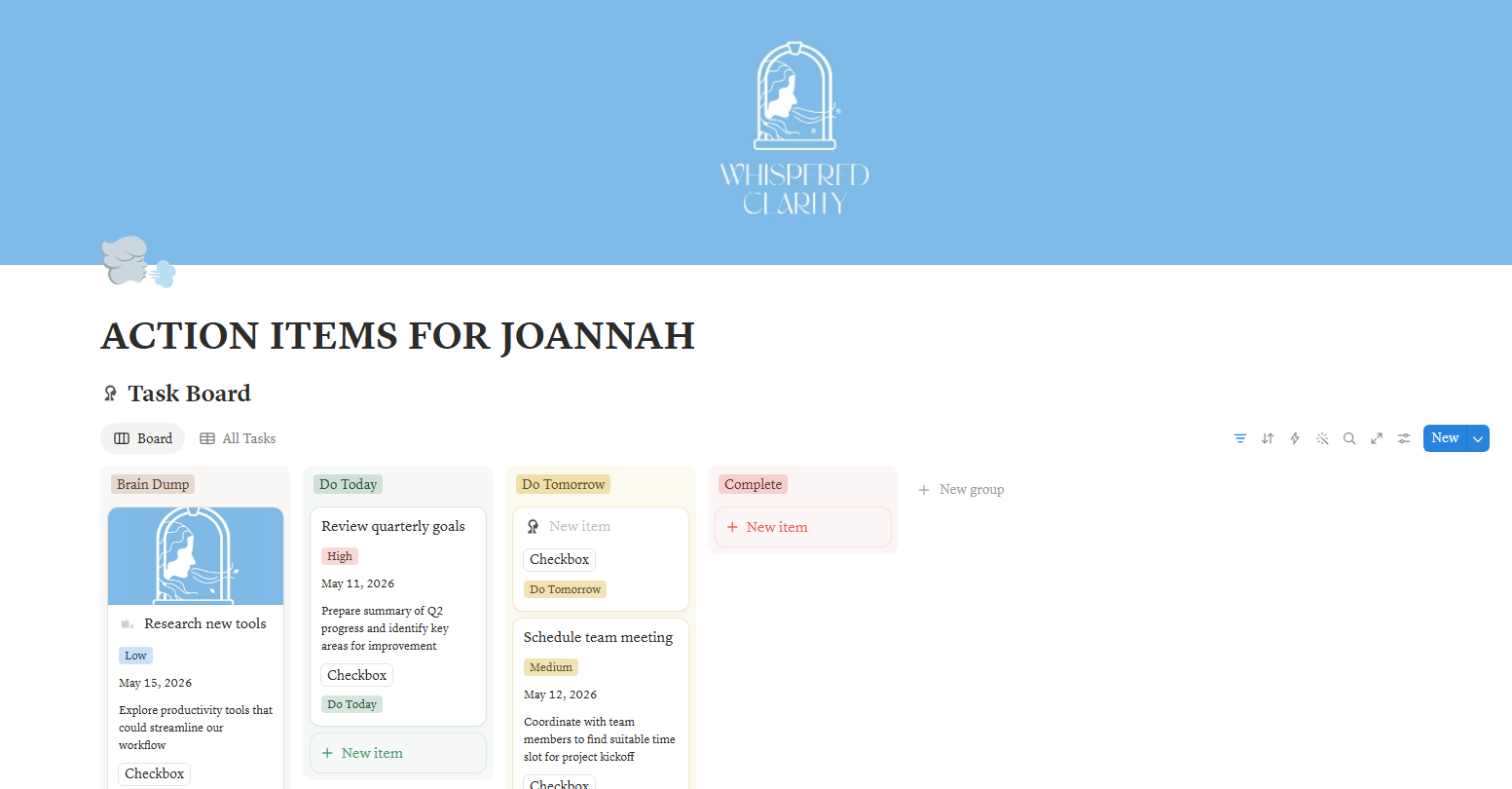
Your logo as page icons. Upload your logo or brand mark as the icon on your main pages.
Pick your closest colors. Choose the one or two Notion colors closest to your palette, and use only those, every time. Consistency reads as branding.
Choose a font style. Set each page to Default, Serif, or Mono, whichever feels most like your brand.
Browser extensions can add hex codes and fonts to Notion, but only on your own screen. Everyone you share a page with still sees standard Notion.
Let's Make It Yours
Personalizing your workspace means a lot of clicking around: the admin console here, a theme menu there, a template you have to remember to use. That's exactly the kind of work I take off your plate.
Whispered Clarity designs and runs clear, simple, and beautiful bespoke business operations so your business becomes a work of art you want to show up to every morning.
I'll set up your brand colors, fonts, and logo across Google Workspace, Microsoft 365, and Notion, so every tool you open feels like yours. Email contact@whisperedclarity.com to book your discovery call today.